
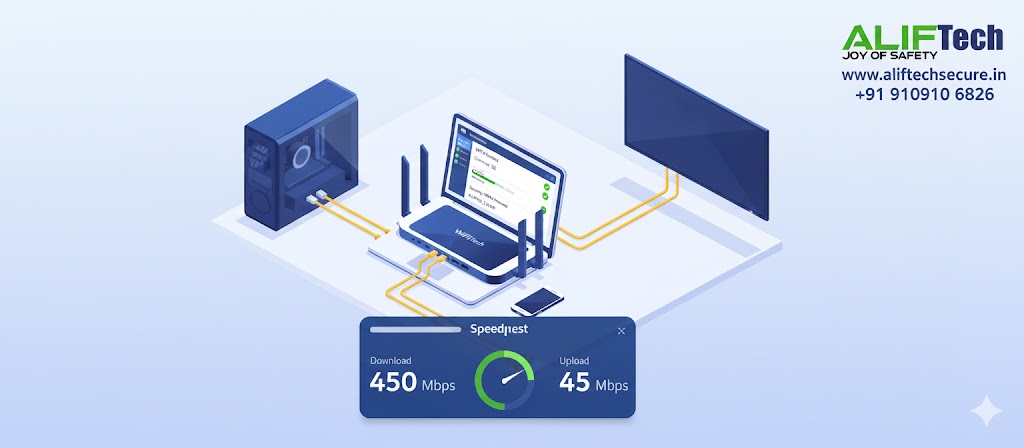
WiFi Router Configuration for Optimal Performance: Complete 2025 Guide
Slow internet speeds and dropped connections often aren’t your ISP’s fault—they’re usually due to poor router configuration. With the right settings, you can dramatically improve your WiFi performance, coverage, and security. This guide covers essential configurations to get the most from your wireless network.
Initial Setup Essentials
Router Placement Matters
Before diving into settings, position your router centrally in your home at an elevated location, away from walls and metal objects. Keep it clear of other electronics like microwaves and cordless phones that cause interference. Proper placement alone can improve signal strength by 30-40%.
Access Your Router’s Admin Panel
Open your browser and enter your router’s IP address (commonly 192.168.1.1 or 192.168.0.1). Login with admin credentials—if you haven’t changed them from the default (admin/admin or admin/password), do so immediately for security.
Critical Configuration Settings
Choose the Right WiFi Channel
WiFi congestion is a major performance killer, especially in apartments and densely populated areas.
For 2.4 GHz band: Use channels 1, 6, or 11—these don’t overlap with each other. Download a WiFi analyzer app to see which channel has the least congestion in your area. Avoid auto-channel selection as it often picks poorly.
For 5 GHz band: You have more options since most channels don’t overlap. Channels 36-48 offer better range, while channels 149-165 provide better speed. Use wider channels (80 MHz or 160 MHz) for maximum performance if your devices support them.
Optimize Channel Width
2.4 GHz: Stick to 20 MHz channel width. While 40 MHz offers higher speeds, it causes more interference and reduces overall network stability in crowded environments.
5 GHz: Use 40 MHz or 80 MHz for the best balance of speed and compatibility. Try 160 MHz only if you’re in an area with minimal WiFi interference and have compatible devices.
Select Appropriate WiFi Standards
Enable 802.11ax (WiFi 6) if your router and devices support it—this offers the best performance, efficiency, and handles multiple devices better. For older setups, use 802.11ac (WiFi 5) on 5 GHz and 802.11n on 2.4 GHz. Avoid legacy modes (b/g) unless you have very old devices, as they slow down your entire network.
Security Configuration
Enable WPA3 or WPA2 Encryption
Use WPA3 if your router supports it—it’s the most secure standard available. If not, use WPA2-AES (never WPA2-TKIP, which is outdated). Avoid WEP or Open networks entirely—they’re security nightmares. Create a strong password with at least 12 characters mixing uppercase, lowercase, numbers, and symbols.
Disable WPS
WiFi Protected Setup (WPS) is convenient but dangerously insecure. Hackers can crack WPS PINs in hours. Disable it in your router settings to close this vulnerability.
Change Default Admin Credentials
Replace default username and password with strong, unique credentials. This prevents unauthorized access to your router settings and protects against common attacks.
Performance Optimization
Enable Quality of Service (QoS)
QoS prioritizes bandwidth for important activities. Configure it to prioritize video calls, streaming, or gaming depending on your needs. Most modern routers offer application-based QoS—enable it and rank your priorities (gaming, streaming, browsing, downloads).
Adjust Transmit Power
If you live in a small apartment, reduce transmit power to 75-80% to minimize interference with neighbors and reduce congestion. For larger homes, keep it at 100% for maximum coverage.
Enable Beamforming
Beamforming focuses WiFi signals toward connected devices rather than broadcasting equally in all directions. This improves range and speed, especially for stationary devices. Enable it if your router supports it.
Configure DNS Settings
Replace your ISP’s DNS with faster alternatives for better browsing speeds. Popular options include Google DNS (8.8.8.8 and 8.8.4.4), Cloudflare DNS (1.1.1.1 and 1.0.0.1), or Quad9 DNS (9.9.9.9). This can reduce page load times by 10-30%.
Advanced Settings
Setup Guest Network
Create a separate guest network to keep visitors off your main network. This protects your personal devices and prevents bandwidth hogging. Set a different password and consider limiting guest network speeds.
Disable SSID Broadcast (Optional)
While hiding your network name provides minimal security benefit, it does reduce casual connection attempts. Only do this if you’re comfortable manually entering network names on new devices.
Update Firmware Regularly
Router manufacturers release firmware updates to fix security vulnerabilities and improve performance. Check for updates monthly and enable automatic updates if available. Outdated firmware is a major security risk.
Enable MU-MIMO
Multi-User Multiple Input Multiple Output allows your router to communicate with multiple devices simultaneously rather than sequentially. If your router and devices support it, enabling MU-MIMO significantly improves performance in multi-device households.
Network Optimization Checklist
- ✓ Changed default admin password
- ✓ Using WPA2-AES or WPA3 encryption
- ✓ WPS disabled
- ✓ Optimal WiFi channel selected (1, 6, or 11 for 2.4 GHz)
- ✓ Appropriate channel width configured
- ✓ Latest WiFi standard enabled
- ✓ QoS configured for your priorities
- ✓ Beamforming enabled
- ✓ Custom DNS configured
- ✓ Firmware updated to latest version
- ✓ Guest network setup
- ✓ Router centrally positioned
Troubleshooting Common Issues
Slow speeds on 5 GHz: Ensure you’re using 40 MHz or 80 MHz channel width and not sitting too far from the router—5 GHz has shorter range than 2.4 GHz.
Frequent disconnections: Check for channel congestion using a WiFi analyzer and switch to a clearer channel. Also reduce the number of connected devices or upgrade to a router with better capacity.
Dead zones in home: Consider mesh WiFi systems or WiFi extenders. Alternatively, adjust router position or upgrade antennas if your router allows it.
Conclusion
Proper router configuration transforms your internet experience without spending a rupee on upgrades. Focus on optimal channel selection, strong security, and smart bandwidth management for the best results. Spend 30 minutes optimizing these settings and enjoy faster, more reliable WiFi throughout your home.
Frequently Asked Questions
Q: What’s the best WiFi channel for 2.4 GHz?
A: Use channel 1, 6, or 11 as they don’t overlap. Check which is least congested in your area using a WiFi analyzer app.
Q: Should I disable 2.4 GHz and use only 5 GHz?
A: No. Keep both enabled. Use 5 GHz for devices near the router needing high speeds, and 2.4 GHz for distant devices or smart home gadgets.
Q: How often should I restart my router?
A: Once a month is sufficient for most routers. If experiencing issues, a restart can clear memory leaks and refresh connections.
Q: Does hiding my SSID improve security?
A: Minimally. It prevents casual users from seeing your network but offers little protection against determined attackers. Strong encryption is far more important.
Q: What’s the difference between WPA2 and WPA3?
A: WPA3 offers stronger encryption and better protection against password guessing attacks. Use WPA3 if both your router and devices support it.
Q: Should I use the router’s auto-channel selection?
A: Generally no. Auto-selection often picks poorly. Manually select the best channel after checking congestion with a WiFi analyzer.
Q: How do I know if my router needs replacement?
A: If it doesn’t support WiFi 5 (802.11ac) or newer, can’t handle your internet speeds, or lacks security updates, it’s time to upgrade.
