
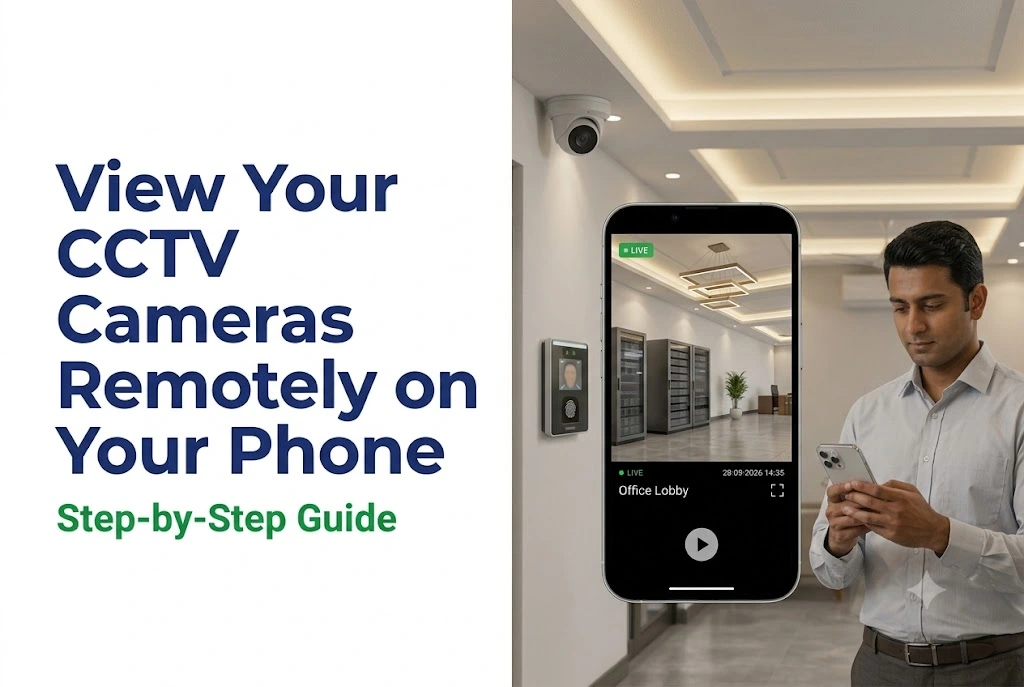
By AlifTech Secure | CCTV & Security Solutions, Indore | June 2026 | www.aliftechsecure.in
You have cameras. You are not at home. And you still cannot see what is happening on your phone.
Setting up remote viewing takes about fifteen minutes when the groundwork is right. Most of the time it fails for one of four reasons, and none of them is the app.
This guide covers what you need, which app matches your brand, the exact setup order for Android and iPhone, and how to fix the problems people actually hit. It also covers one thing most guides get dangerously wrong.
Quick Answer
- Plug the DVR or NVR into the router with an Ethernet cable. Most failures start here.
- Use your brand’s app: gCMOB for CP Plus, Hik-Connect for Prama, DMSS for Dahua.
- Register by QR code or serial number, not by IP address, so P2P works.
- Test on mobile data, never on your home WiFi.
- Change the default password before enabling any remote access.
What You Need Before Starting
Four things. Missing any one of them is why remote viewing does not work.
A recorder connected to your router
Your DVR for analog cameras or NVR for IP cameras must reach the router over an Ethernet cable.
This is the step people skip. Plenty of systems are powered on with no network cable plugged in at all, and nothing you do on the phone will fix that.
Internet at the camera location
Upload speed matters more than download here, because the video travels outward. About 2 Mbps upload handles one or two streams comfortably. If the site runs on a 4G router, check the connection holds steady before depending on it.
The right app installed
Different brands use different apps. The table below covers what sells in India. Install it before you start configuring.
The serial number
You need the recorder’s serial number, printed on a sticker on the unit and also shown in the system information screen. Note it down first, because you will be asked for it mid-setup.
Which App for Which Brand
One thing catches people out immediately: some brands use different app names on Android and iPhone. CP Plus is the main example.
| Brand | Android app | iPhone app |
|---|---|---|
| CP Plus | gCMOB | iCMOB |
| Prama | Hik-Connect | Hik-Connect |
| Dahua | DMSS | DMSS |
| Matrix | SATATYA Sight | SATATYA Sight |
| HiFocus | HiFocus Eye | HiFocus Eye |
| Unbranded recorder | XMEye | XMEye |
A note on the last row. If your unit shows no recognisable brand, check the invoice or packaging, since many rebranded recorders run CP Plus or Dahua hardware underneath and work with those apps.
Avoid guides that call any one app “universal.” iVMS-4500, for example, is Hikvision’s own app rather than a general-purpose tool, and pointing it at another brand’s recorder usually wastes an evening.
Setup, Step by Step
Step 1: Connect the recorder to the router
Find the Ethernet port on the back of the unit and run a network cable to your router. Watch for the blinking green light on the port, which confirms a live link.
Use a longer cable rather than WiFi for this connection. A wired link between recorder and router is far more reliable, and remote viewing depends on it staying up.
Step 2: Note the network details
Open the recorder’s main menu, usually by right-clicking with a connected mouse, then go to Network Settings.
Note the local IP address, typically something like 192.168.1.x. Note the HTTP and RTSP ports too, in case the app asks.
Step 3: Add the device in the app
Open the app and create an account using your phone number or email. Tap Add Device, then choose Scan QR Code and point your phone at the code printed on top of the recorder. Enter the serial number manually if the code will not scan.
Then enter the recorder’s username and password. If nobody has changed these yet, they are printed in the device manual or on the unit itself, and your first job after connecting is to change them.
The app registers the device and lists your cameras. Tap one to open the live feed.
Step 4: Test on mobile data
This is the test that matters. Turn your phone’s WiFi off, switch to mobile data, and open the app again.
Cameras that appear on home WiFi but vanish on mobile data mean the app is only reaching the recorder locally. The troubleshooting section covers that.
Security: Do This Before Anything Else
A recorder reachable from the internet with factory credentials is one of the most reliably compromised devices in any home or office. So handle this first, not last.
Change the password immediately
Before enabling remote access of any kind, set a password of at least twelve characters mixing letters, numbers and symbols. Not the factory setting, and not the same password you use elsewhere.
Prefer P2P over port forwarding
Modern systems connect through the manufacturer’s cloud relay, which is what people mean by P2P. Your recorder reaches outward to the cloud, so no inbound door needs opening on your router. That is both simpler and considerably safer.
Worth knowing where that relay sits, though. Your video passes through the manufacturer’s servers, so the brand you buy determines whose infrastructure carries your footage. Since April 2026 that question matters more in India, and our guide to the CCTV import and BIS rules explains why.
Keep firmware current
Manufacturers patch security holes through firmware. Check your version against the manufacturer’s site every few months, particularly on any device exposed to the internet.
Give each person their own account
Sharing one admin login with a guard, a manager and three family members means any one of them being careless hands over full control. Create separate users in the recorder’s user management screen with only the permissions each needs, so you can revoke one without disturbing the rest.
Port Forwarding, and Why It Is a Last Resort
Most systems never need this. Try P2P registration first.
If your recorder is genuinely too old for P2P, forwarding is possible but it opens a door from the internet to your device. Two rules matter more than the steps themselves.
Never forward port 80 or 8080. Those are the first ports automated scanners check, and exposing a recorder there is how most CCTV compromises happen. Pick a high, unusual external port instead, well above 10000, and map it to the recorder’s internal port.
Never forward anything while factory credentials are still set. Change the password first, then open the port. Doing it in the other order gives you a window where anyone scanning can walk in.
The rough process: log into your router at 192.168.1.1 or 192.168.0.1, find Port Forwarding or Virtual Server, add a rule pointing your chosen high external port at the recorder’s local IP and internal port, save, and restart.
The CGNAT problem in India
Many Indian ISPs, including Jio Fibre and Airtel, place customers behind Carrier-Grade NAT, meaning you share a public IP with many other subscribers. Port forwarding cannot work in that situation regardless of how correctly you configure it.
So if forwarding fails and cameras still will not load on mobile data, the answer is not more router settings. Confirm with your vendor whether the system supports P2P, because almost every current system does.
Troubleshooting
App shows offline
Check the network cable first, then the blinking light on the recorder’s Ethernet port.
If both are fine, the IP address has probably changed after a router restart. Fix it permanently by setting a static IP on the recorder or a DHCP reservation for its MAC address in the router.
Works on WiFi but not mobile data
The app is reaching the recorder locally only. This almost always means the device was added by IP address rather than by serial number.
Remove it and re-add it using the QR code or serial number, since P2P works through the serial rather than the local address.
Video buffers or lags
Usually bandwidth. Confirm at least 2 Mbps upload at the camera site.
Then switch the app’s stream setting from Main Stream to Sub Stream. Quality drops slightly, though remote viewing becomes stable on slower connections, which is the trade most people want.
Wrong username or password
If nobody knows the password, a factory reset is the only route, and it clears all settings including camera configuration. Note your current setup first. The procedure is in the device manual.
Only some cameras appear
Check the recorder’s local monitor. Cameras missing there have a physical problem, usually a loose cable or a failed power supply on that channel.
Cameras visible locally but absent in the app point to a channel assignment issue in the app settings instead.
Frequently Asked Questions
Can I view my CCTV cameras from another country?
Yes. Once the recorder has internet at the camera location and the app is configured, distance makes no difference. Only the upload speed at the camera site affects quality, so a slow connection means lower resolution rather than no connection at all.
Do I need a paid subscription for remote viewing?
Usually not. Live viewing and remote playback through gCMOB, Hik-Connect and DMSS are free, since the footage sits on your own recorder. Paid plans exist for cloud recording backup, which is a separate feature. Very old models occasionally have limited app functionality without one.
How many people can watch at the same time?
Most recorders support four to ten simultaneous remote viewers depending on model, though upload bandwidth at the camera location is the real limit. Home and small business connections typically handle two to four viewers comfortably before quality starts dropping.
Is it safe to have cameras reachable over the internet?
Reasonably safe with a strong password, current firmware and separate user accounts. P2P is safer than port forwarding, because your recorder reaches out to the cloud rather than sitting exposed to inbound scans. Most compromises trace back to factory credentials on a forwarded port.
Remote viewing worked, then stopped. Why?
Three usual causes. The recorder’s IP changed after a router restart, so set a static IP or DHCP reservation. The internet at the camera site went down or the connection changed. Or the firmware is too old for the current app version. A network check normally resolves it in under half an hour.
The Short Version
Ethernet cable to the router. Correct app for your brand. Register by QR code or serial, never by IP. Change the password before going online. Then test on mobile data rather than WiFi.
That sequence works on the first attempt for most people. If you get stuck, it is almost always the cable, the registration method, or the upload speed.
| AlifTech Secure — Indore Call / WhatsApp: +91 9109106826 www.aliftechsecure.in | aliftechsecure@gmail.com 112 Basement, Akbar Ali Complex, MG Road, Palasia Square, Indore — 452001 |
| Get Remote Access Set Up on Your Phone Today Call us for a site visit — we configure remote CCTV viewing and test it before we leave. Call / WhatsApp: +91 9109106826 | www.aliftechsecure.in |
AlifTech Secure | CCTV & Surveillance Solutions, Indore MP | +91 9109106826 | www.aliftechsecure.in

